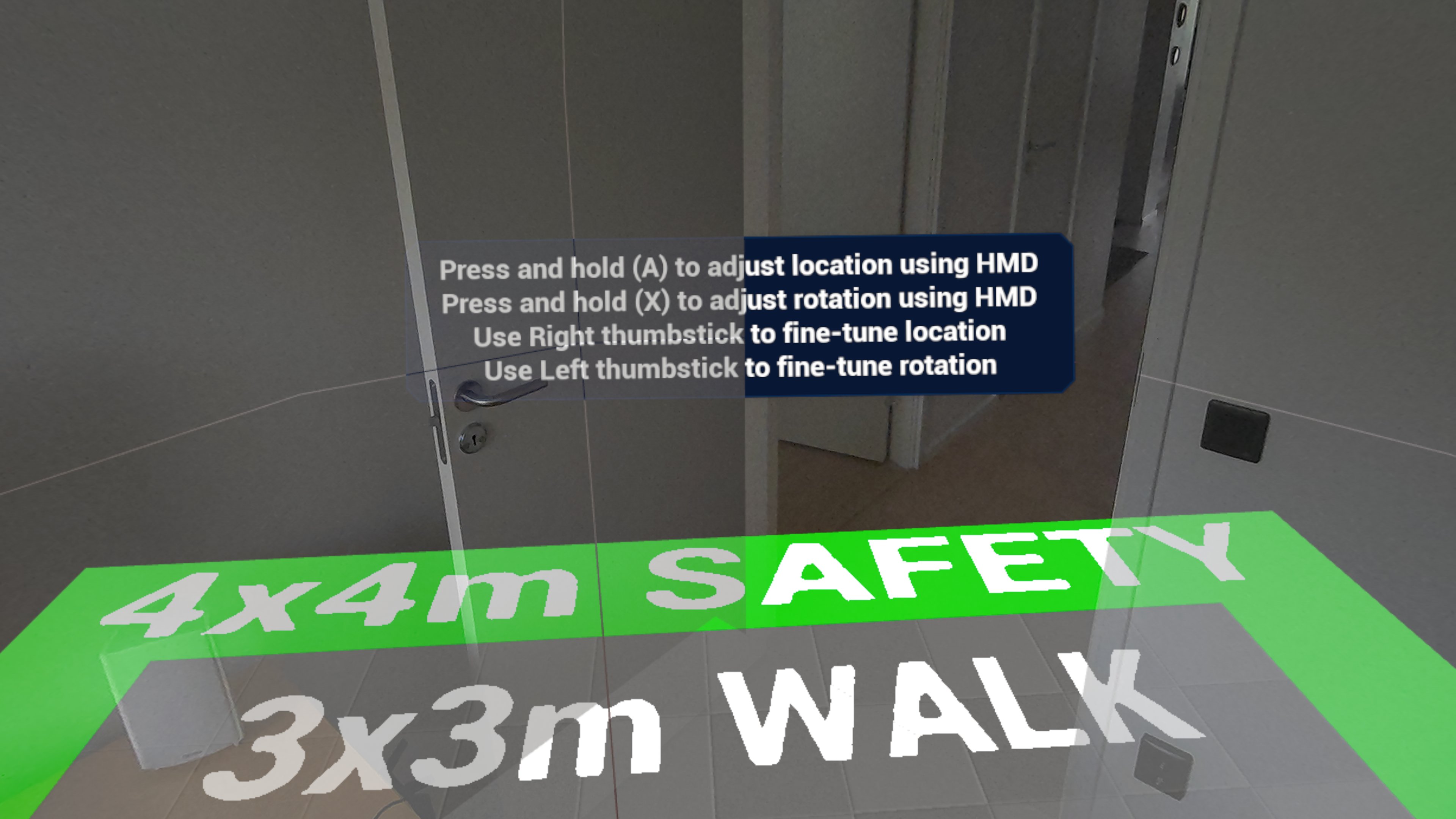

In this post, we present a solution to fixate a free-roam VR experience in the real world using the Meta Quest 3 VR headset's room scan ability.
In a free-roam VR experience, the player explores a fully virtual world by walking around in the real world, for example in a 3x3 meter area as used in Immerstory's Mission: Vertical. Because the player cannot use the joysticks on the controller to move around and instead uses their natural body movement, a big potential source of VR motion sickness has been eliminated.
Why fixate a free-roam VR experience?
A fully virtual experience can usually be played anywhere. However, when walking around in the real world is used to move around in the virtual world, we need to make sure that the player does not hit any obstacles in the real world such as walls or furniture. For this, the experience usually takes place in a certain room or area with enough walkable space, without any obstacles, for example in a 4x4 meter area to allow for some freedom of movement.
When a virtual world is loaded by Unreal Engine, the player start position in the world is aligned with the VR headset's location/orientation, regardless where the player is in the real world. To make sure the level is loaded at the correct location relative to the real world, there will usually be a visual indicator in the room for the player to stand on (for example, a sticker on the floor in the middle of the room), before loading the level.
However, when the player is looking 30 degrees to the left when the level is loaded, the level will be oriented 30 degrees to the left, and may then no longer fit the intended space. When that happens, the player has a high risk of colliding with obstacles, which may cause injuries and ruins the experience. Of course this can be fixed by holding the button on the controller to re-align the level while the player is looking forward, but it requires someone to notice and instruct the player to do this, which is not a smooth experience.
In summary, this setup is clearly quite fragile and error-prone.
Tech Stack
For the setup used in Mission: Vertical, we're using the following tech stack:
Setting up the alignment for the free-roam level
In order to fixate the virtual world in the real world, we need to use the Scene API provided by the Mixed Reality Utility Kit to get access to the room geometry based on a previously done room scan. The room geometry is added to the level as a hierarchy of spatial anchor actors for various elements in the room, such as a floor, ceiling, walls and furniture.
Please note: the spatial anchor actors only exist at runtime, and only after the Scene API was used to load the scene.
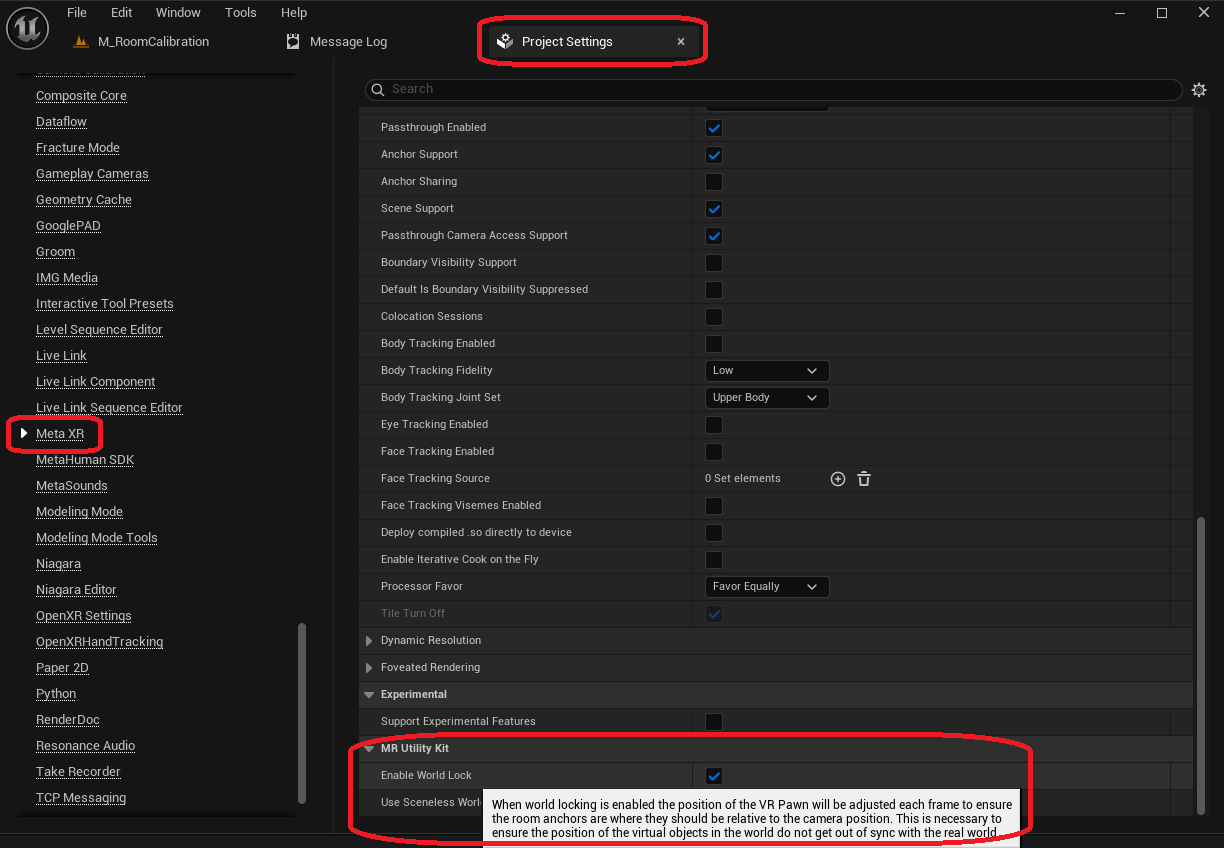
The MetaXR plugin offers a feature call World Lock that ensures the room geometry always appear in the correct location / orientation by moving / rotating the player character. It is enabled by default, as can be seen in the image below.
An example room anchor hierarchy is shown in the image below. Some anchors have actors attached to them, e.g. with procedural meshes to make the walls and ceiling visible to the player in the virtual world.
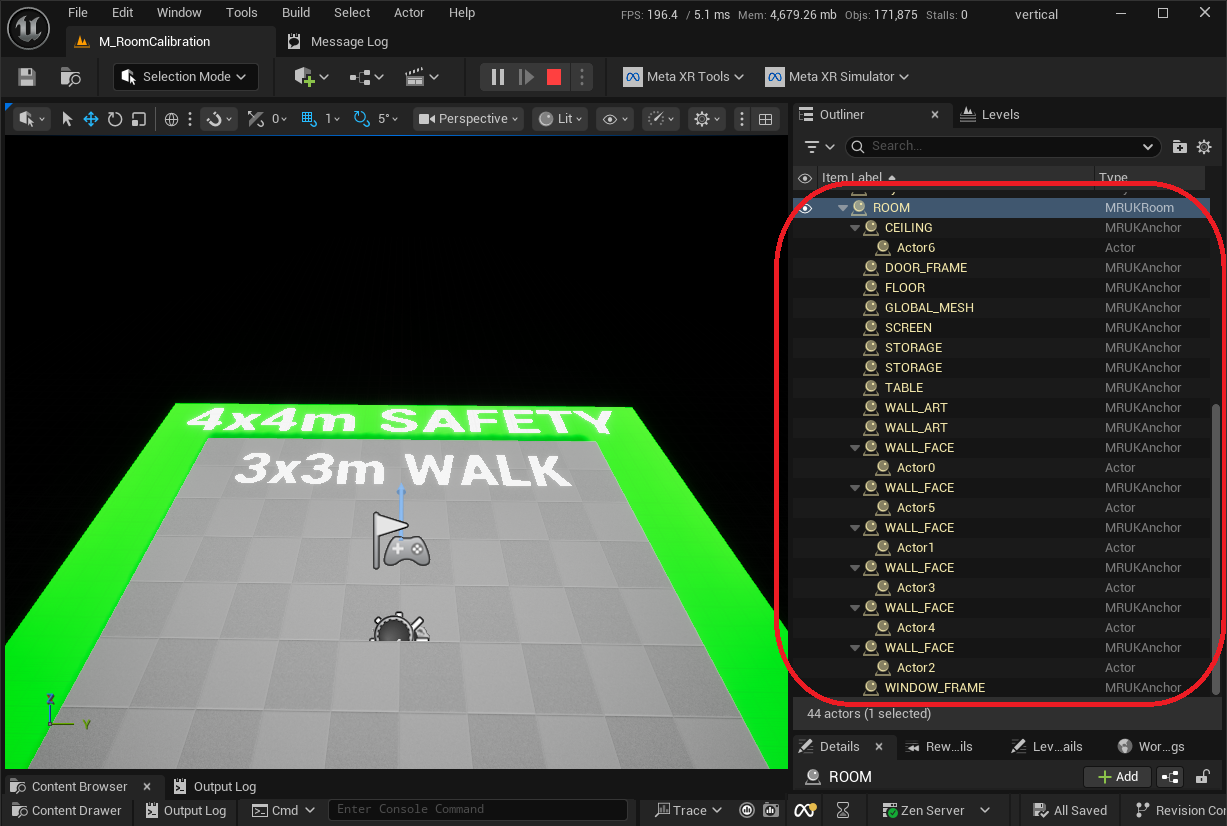
The existence, location and orientation of all spatial anchor actors can vary (except for the ROOM spatial anchor actor, which always corresponds to the virtual world origin), because most rooms are different. Since we can assume every room has a floor, we use the FLOOR spatial anchor as a reference point for how we want to location / orient the free-roam level in our Mission: Vertical. This also ensures the alignment will be done at the correct floor level.
Alternatively, we could have used Meta's Spatial Anchor API to create a dedicated spatial anchor for the free-roam level location / orientation. However, this API is quite cumbersome to use since it is an asynchronous API, and anchors can only be created, read and deleted - updates must be done manually be deleting and then adding a new spatial anchor, which has shown to be quite error-prone when done in quick succession.
As part of the experience setup process, we have created a simple mixed-reality level to place a semi-transparent floor layout within the room. The floor layout contains an inner section that is 3x3 meter where the player will be walking around, and an outer section that is 4x4 meter for safety. Once the floor layout has been positioned as desired in the real world room, its location / orientation relative to the FLOOR anchor is stored in a save-file, together with the UUID of the anchor. Later, this location / orientation is used to corrently place the free-roam level in the room.
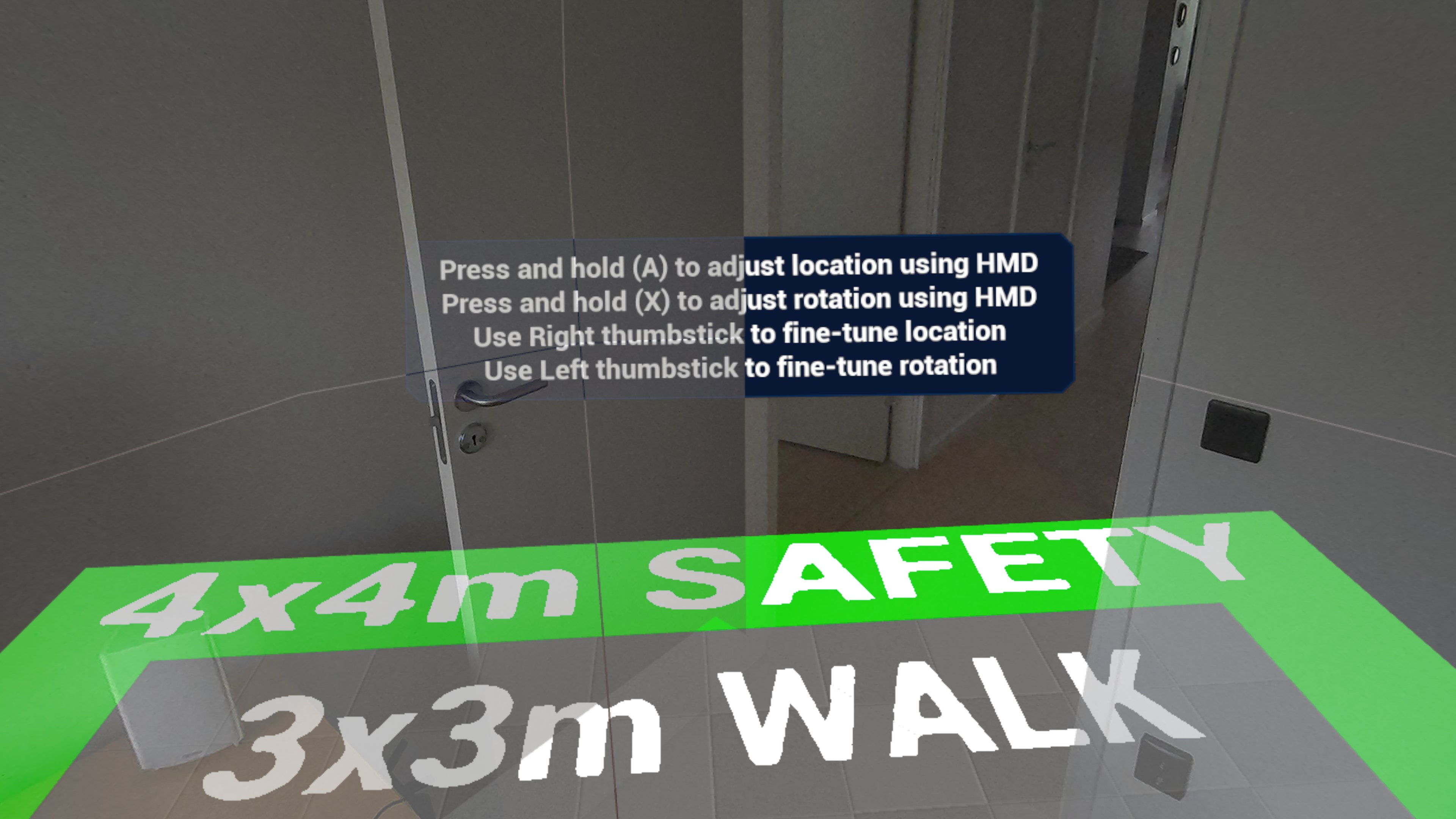
The following video shows how the floor layout can be placed / oriented in the physical room.
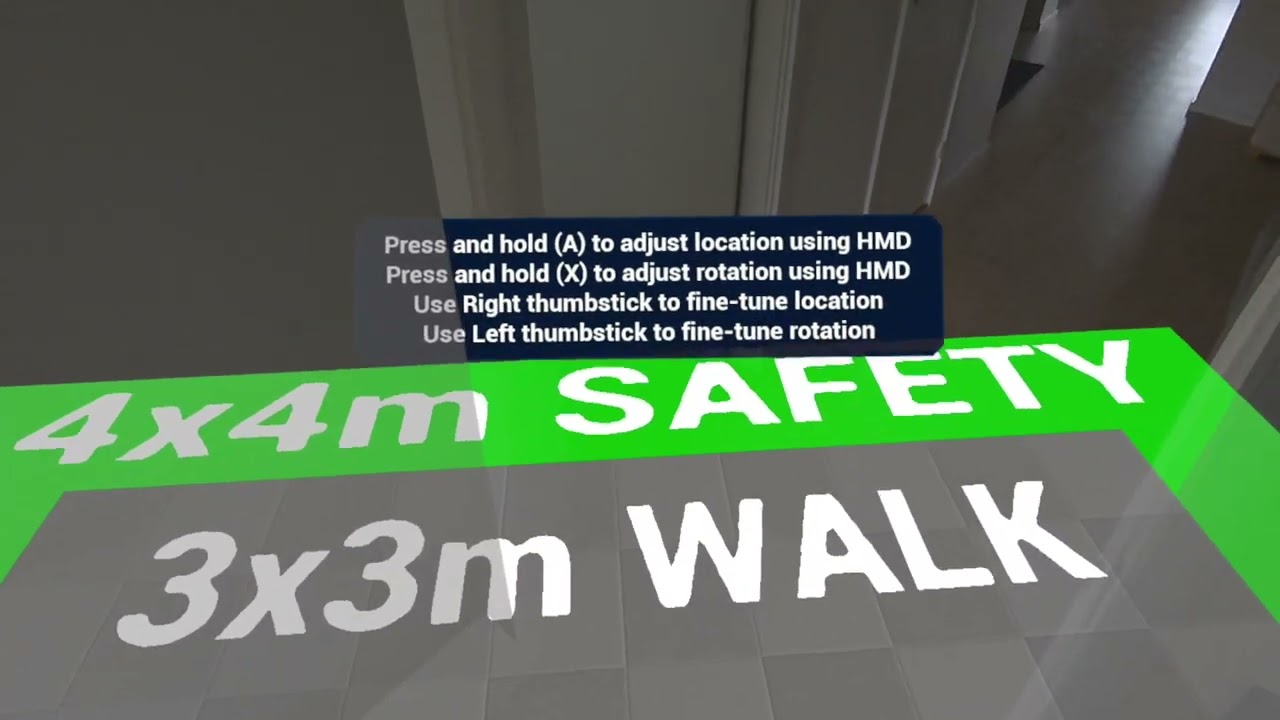
Clicking play will embed the YouTube player and may set third-party cookies and collect data from YouTube.
Applying the alignment to the free-roam level
In order to place the free-roam level correctly in the room, there are basically 2 options:
- Move the content - Load a sub-level with all the content at the desired location / orientation, or
- Move the player - Load the free-roam level as before, and adjust the initial player character location / orientation so that the level content appears to be in the desired location
Option 1 - Move the content
Arguably the simplest solution is to move all the virtual content to the proper location / orientation, so that it is positioned at the desired location in the physical room. This can be achieved by placing all content in a sub-level, and loading that sub-level at the correct location / orientation when the room geometry has become available. This way, static actors can still remain static to allow for baked lighting, which is crucial for performance and visual fidelity for experiences that run on headsets with limited hardware capabilities.
This solution works fine with the default World Lock feature offered by the MetaXR plugin for Unreal Engine, assuming no player locomotion is required for the experience, and the player does not move around in the virtual world using e.g. moving platforms, teleportation or elevators.
Potential drawbacks for this solution include:
- When content is placed in multiple sub-levels, each sub-level must be loaded at the proper location / orientation, which may increase complexity of this solution
- Content can no longer assume a given location / orientation, as it can be loaded at any location / orientation, rather than always at the world origin
Option 2 - Move the player
An alternative, slightly more complicated solution is to move the player in the virtual world, so that the virtual world lines up correctly with the desired location / orientation for its origin. It is similar to what the default World Lock feature is doing, while also taking into consideration where in the physical room the virtual world origin currently is and where it should be. Basically, the player is moved by the World Lock to move the room geometry into place, and moved again to move the content into the desired place.
This solution does not work with the default World Lock feature offered by the MetaXR plugin for Unreal Engine, as it always moves the player to a specific location / orientation, without considering or allowing additional offsets. Thus, for this solution we create a custom World Lock implementation, and disable the default implementation.
In its simplest form, the player is moved once to move everything into the right place in the physical room, instead of doing this every frame, which is how World Lock works by default. For a fully virtual free-roam experience, this is usually sufficient, as it moves the virtual content into the desired location / orientation in the physical room, and the usually minor drift is not noticeable when there is no obvious frame of reference due to the lack of passthrough (it's not a mixed reality experience, so the real world is not visible via the VR headset).
The benefit of this solution is that the virtual world origin remains the actual world origin, so sub-level management does not get complicated by any offsets that must be applied. In addition to that, content can still make assumptions about their location / orientation. The experience just has to consider that the player can start in any location / orientation, depending on where the player is in the physical room relative to the virtual content world origin after alignment.
Potential drawbacks for this solution include:
- When player locomotion should still be supported (e.g. for easier testing during development), the implementation becomes a lot more complicated, as it adds yet another offset to the player that even changes over time
- When the room geometry should remain in place during the whole experience, the implementation becomes a lot more complicated, for example when the player can use moving platforms, teleportation or elevators to move around in the virtual world, or when climbing / ladder mechanics are present in the experience
For our Mission: Vertical we choose this option as we make use of multiple sub-levels, have moving platforms and an elevator for the player, and we don't need to keep the room geometry in place during the whole experience as it's only used for initial virtual content alignment.
Conclusion
Fixating a fully virtual free-roam level in a physical room allows the smoothest way for players to start the free-roam experience by minimizing unintended alignment issues and the associated risks for injuries.
We at Immerstory are excited to support our customers with their immersive experiences, and look forward to sharing more exploration progress soon.
What immersive experience would you like to see? Let us know!
Additional Resources
Documentation for the MetaXR plugin, specifically the Mixed Reality Utility Kit which was used for this demo, can be found here.