
We continue our exploration of Mixed Reality capabilities of the Meta Quest 3 using Unreal Engine and the MetaXR plugin that we've started in a previous devlog post.
In this post, we look at adding multiplayer capabilities using the excellent VR-Expansion Plugin for Unreal Engine.
Tech Stack
For this exploration, we're using the following tech stack:
Multiplayer - cool but complex
Multiplayer support allows multiple users to share the same virtual experience, interacting with the virtual world in a cooperative or competitive manner. Such experiences can be purely virtual, allowing for players to not necessarily be in same physical space, or mixed reality where players are typically colocated in the same physical space. This enables really cool experiences with multiple people, but unfortunately there is no free lunch.
Supporting multiplayer adds a lot of technical complexity to a project (which is far beyond the scope of this blog article), given that a client/server setup is required, which inevitably adds latency to the experience due to the continuous replication of data between the clients (mainly responsible for user input, rendering the scene and playing audio / animations) and the server (it has authority on everything that happens in the map, such as physics, interactions and game logic, and replicates relevant data to all relevant clients). Notably, Unreal Engine clients can only communicate with the server, and the server can communicate with every client, thus there is no direct communication between clients.
Especially when wearing a VR headset, any kind of latency due to replication is immediately noticeable (e.g. when the virtual camera/hands lag behind the physical headset / controller position / orientation), which may lead to motion sickness - so this should be avoided at any cost.
Much of this complexity is fortunately already solved by the VR-Expansion Plugin for Unreal Engine, especially in the area of replicating VR elements between clients and the server to ensure a smooth VR experience. It has a great example project that can be used as inspiration and guidance for how the plugin is properly used.
Changes for Multiplayer support
Compared to a default VRTemplate project in Unreal Engine, at least the following notable changes must be made when using the VR-Expansion Plugin:
- Use a
VRPlayerControllerinstead of a defaultPlayerController - Use a
VRCharacterinstead of a defaultPawnorCharacter - Use a
GrippableActor(e.g.GrippableStaticMeshActor) instead of addingGrabComponentto anActor
A setup like this works very nicely for virtual reality experiences. However, for mixed reality experiences (at least with the MetaXR plugin) we must make some adjustments to make it work properly.
Mixed Reality requires further adjustments
As soon as we have a mixed reality experience with the MetaXR plugin that uses a Scene (where the headset scans the room to identify elements such as walls / floor / ceiling / furniture), we notice an immediate problem when using the setup from the previous section: the camera is locked on the floor, instead of its expected position, no matter if the headset is moved up or down in reality.
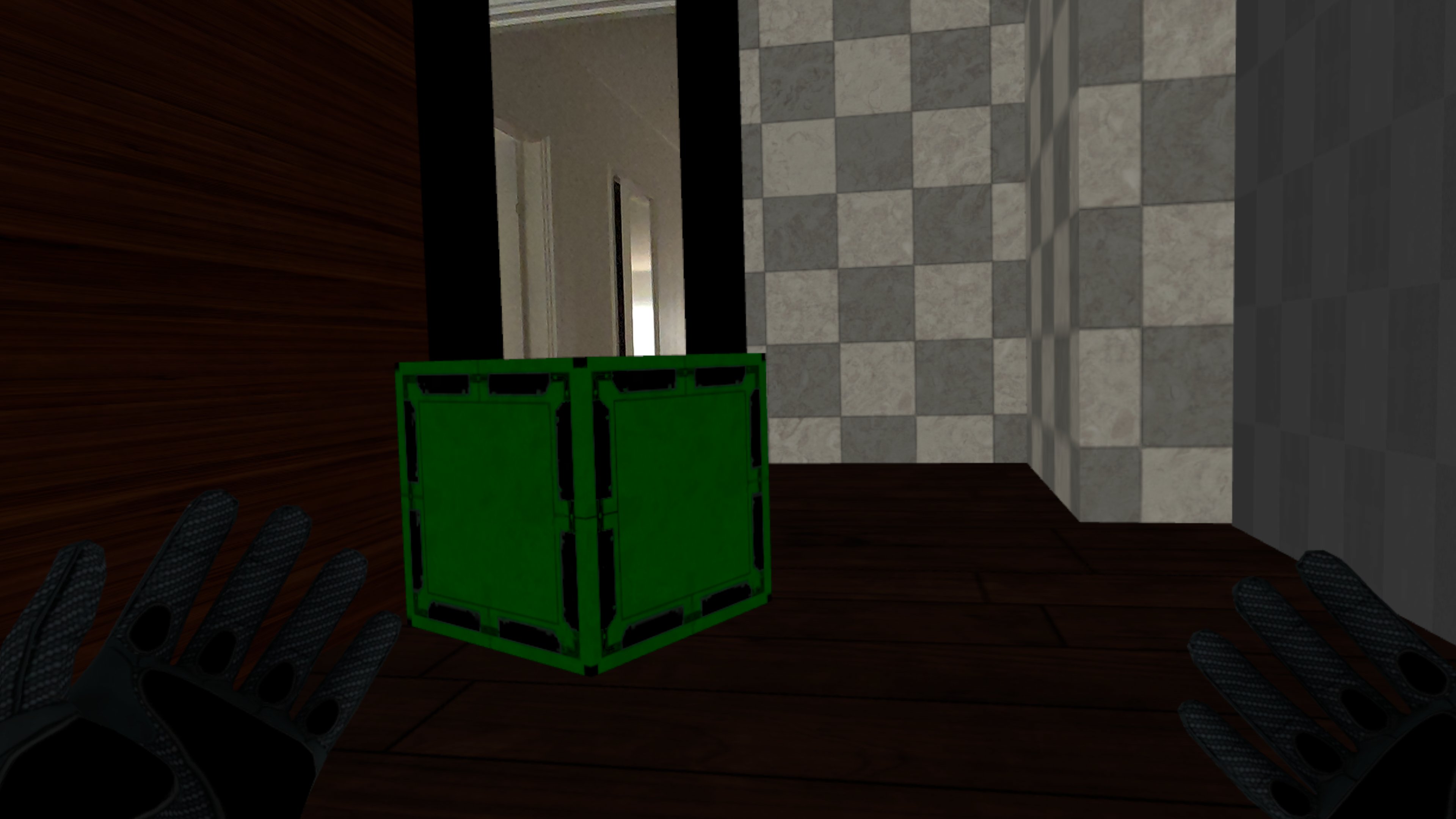
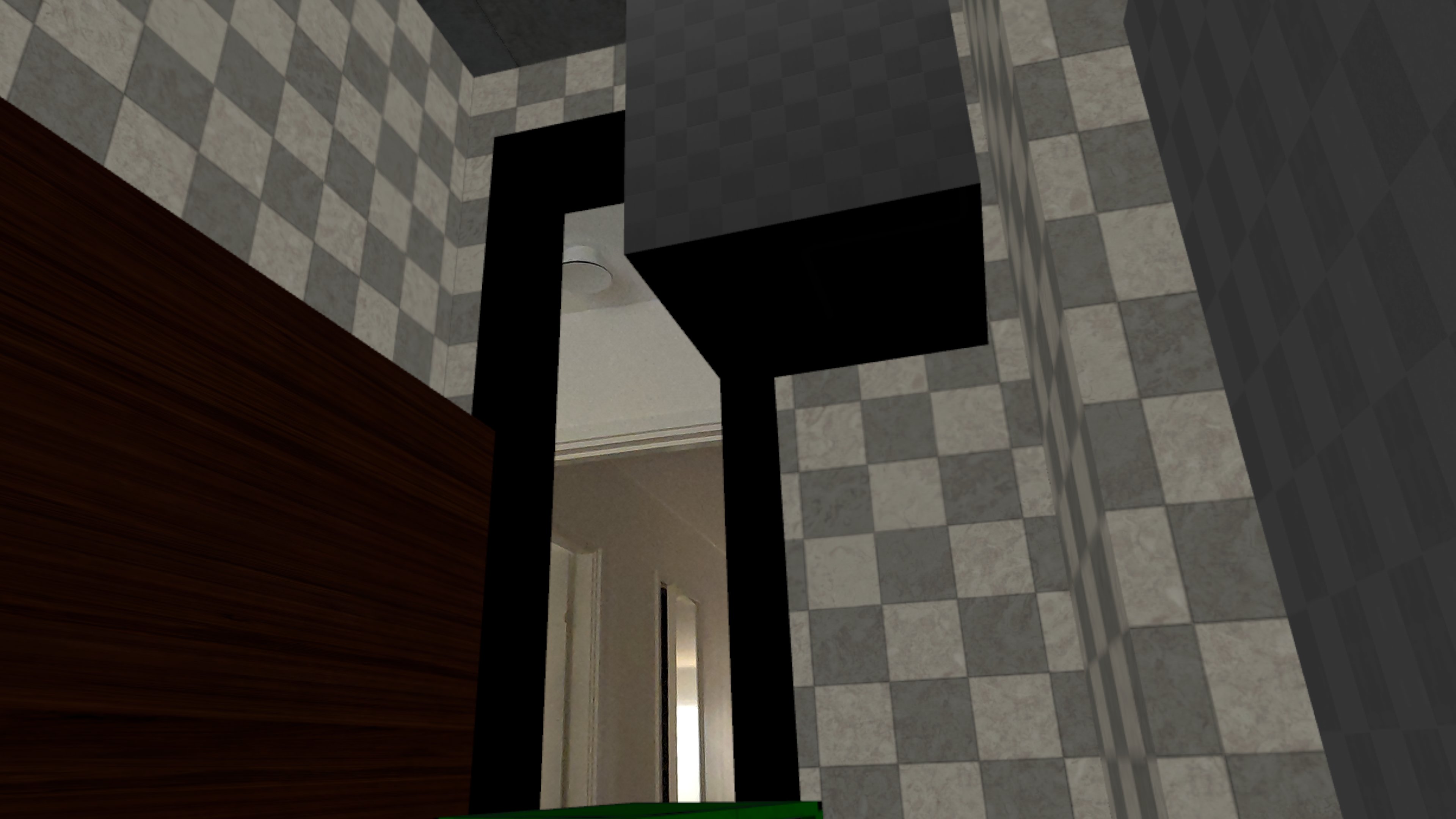
This is happening because by default the MetaXR plugin has a feature World Lock in MRUtilityKit, which uses the floor anchor to visually lock the virtual world in place, even for actors that are not anchored. Anchoring an actor to a Scene ensures that its location/orientation is always consistent with the physical space, regardless how the initial headset-position/orientation was, which is quite essential to make consistent mixed reality experiences.
The World Lock feature essentially compares the anchored location/orientation of the floor anchor with the virtual floor actor location/orientation, and offsets the PlayerCharacter by this amount to move the camera - effectively 'moving' the whole virtual world to keep it properly aligned with the physical world. This happens every tick, to ensure a smooth experience.
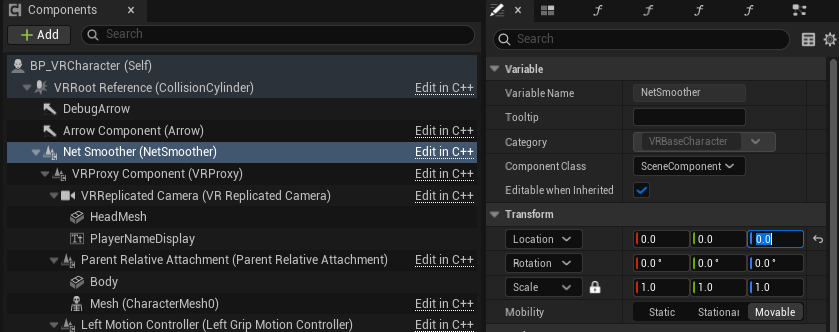
So why is the camera locked to the floor when using the VRCharacter, while working without problems with a default Pawn / Character? Apparently, one of the components of the VRCharacter, namely NetSmoother, is offset by -98.15 on the Z-axis, which has the effect that normally the VRCharacter is located at a Z-coordinate of about 98.15, assuming the floor is at Z-coordinate 0. However, with the World Lock feature setting the VRCharacter location/orientation to the difference between the anchored and virtual floor actor location/orientation, this is usually around 0, which basically moves the whole VRCharacter (including camera and hands) down by almost 1 virtual meter.
In order to fix this symptom, we've made the following change to our VRCharacter subclass:
- Set the position of the
NetSmoothercomponent to(0, 0, 0)instead of(0, 0, -98.15)
We have not observed any negative side-effects of this adjustment yet, and the World Lock feature works properly with that change.
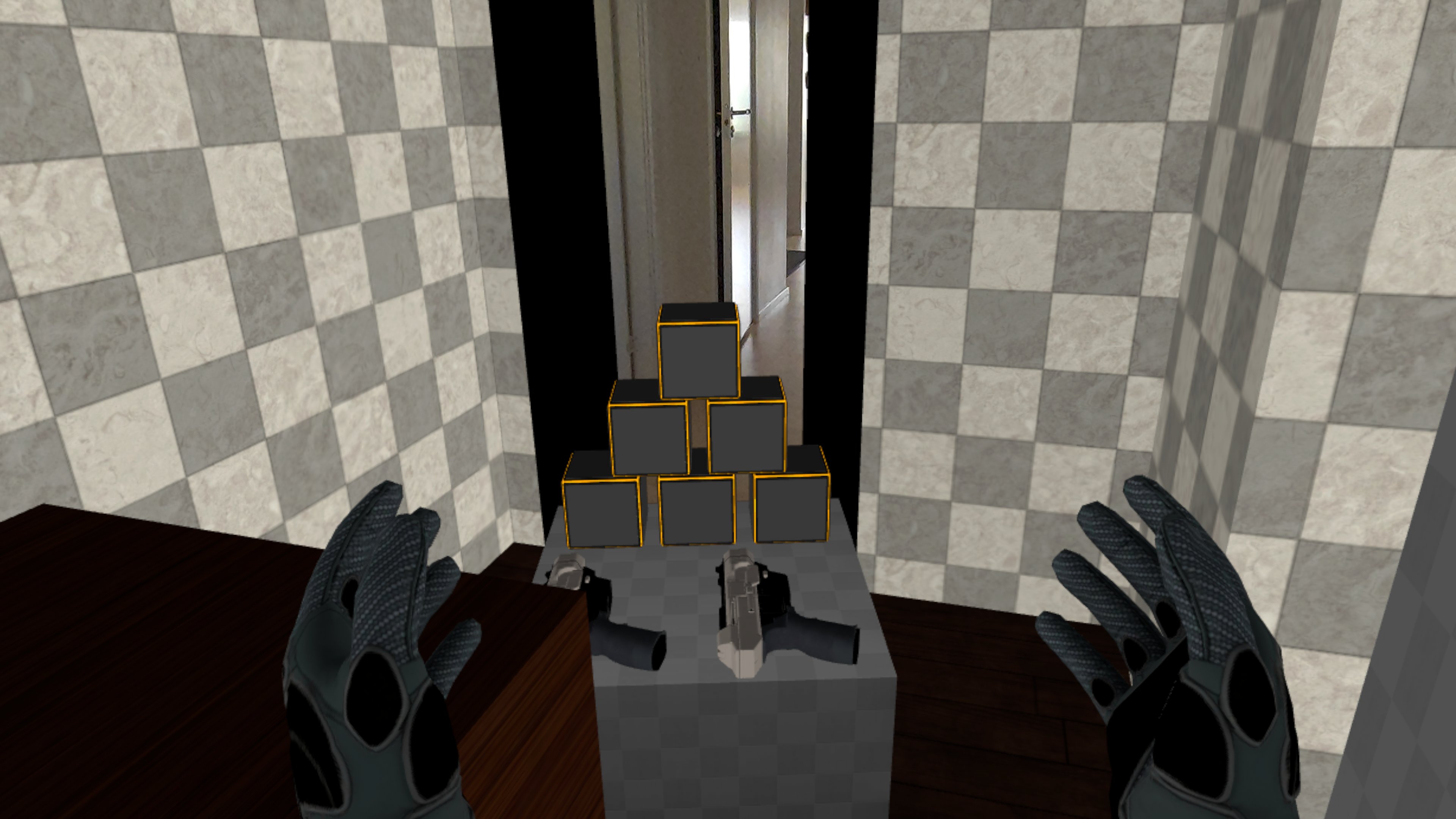
In addition, we apply the following changes in our VRCharacter subclass to ensure the VRCharacter does not move, as it would break immersion:
EnableGravityis disabledGravityScaleis set to0HMDTrackingOriginis set toStageinstead ofFloorRetainRoomscaleis set totrue- Locomotion is disabled
MetaXR plugin features should only be used on headsets
To enable multiplayer features, a server is required, ideally a dedicated server that does not run on the headset, to ensure the headset has as much performance/battery available for the client-side of the experience.
A dedicated server typically runs on Windows or Linux, and using the MetaXR plugin for mixed reality adds a bit of challenge in such setups, given that the MetaXR plugin functionality only works on a headset, and does not support Linux as a platform out of the box.
Conditional room setup
When building a dedicated server (which is already a bit of a challenge in itself) for Windows or Linux, we need to ensure that the MetaXR functionality is not used.
Our starting point for that functionality is in the blueprint BP_RoomSetup, which normally would start the room-setup as soon as its created (in the BeginPlay event). To make sure that this functionality is only run on a headset (or when a headset is present, e.g. via AirLink), we add the following conditions to the room-setup:
- The PlayerController is locally controlled, which means we run on a client
- The HMD is connected, which means a HMD is at least present
- The application was not started with the
-unattendedoption - The application runs in VRPreview or a packaged build
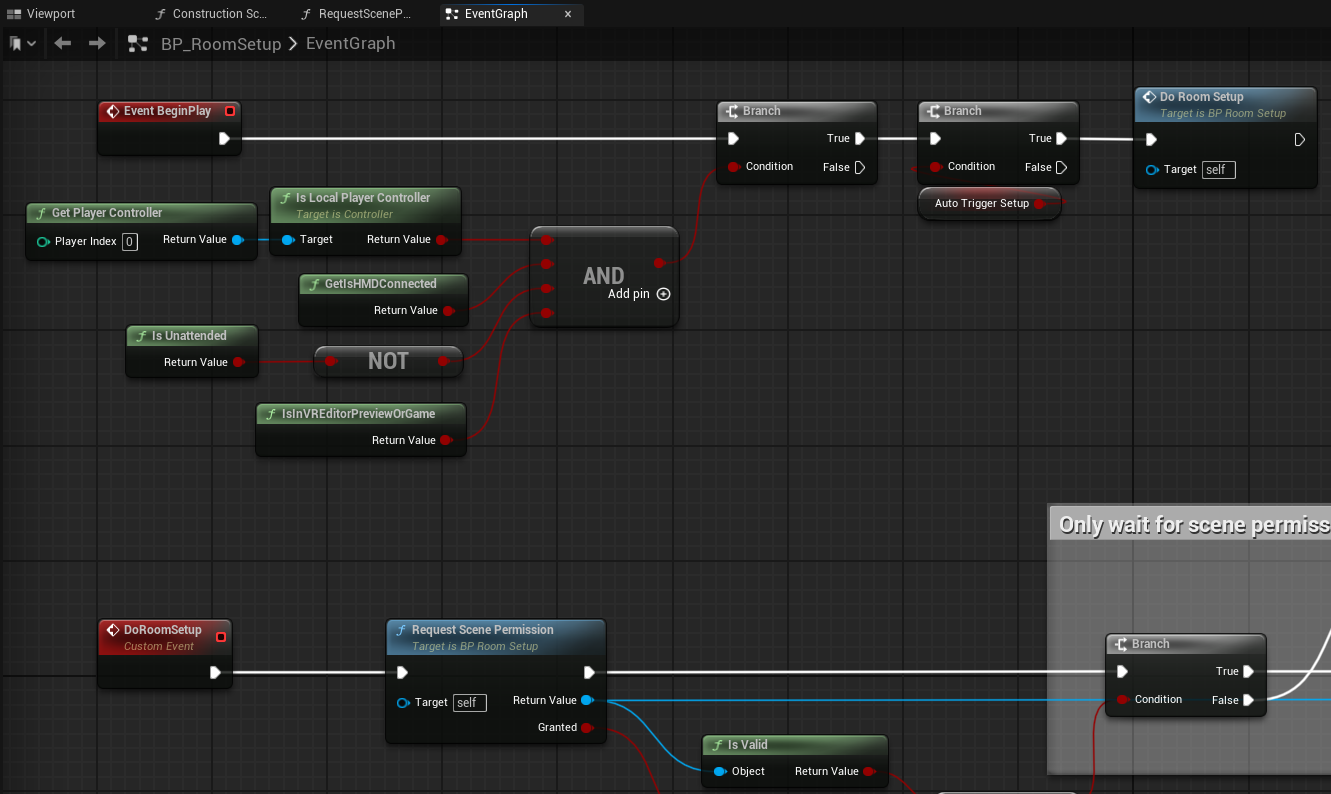
This way, the actual room-setup is only done on an APK running on the headset, or a Play-In-Editor instance e.g. via AirLink. On a dedicated server, or a non-VR-client the room-setup will be ignored.
The images below show what a client on the headset and a (non-VR) Windows client see (the other player is represented with 2 hands, a cube for a head and a flat cylinder for a body).
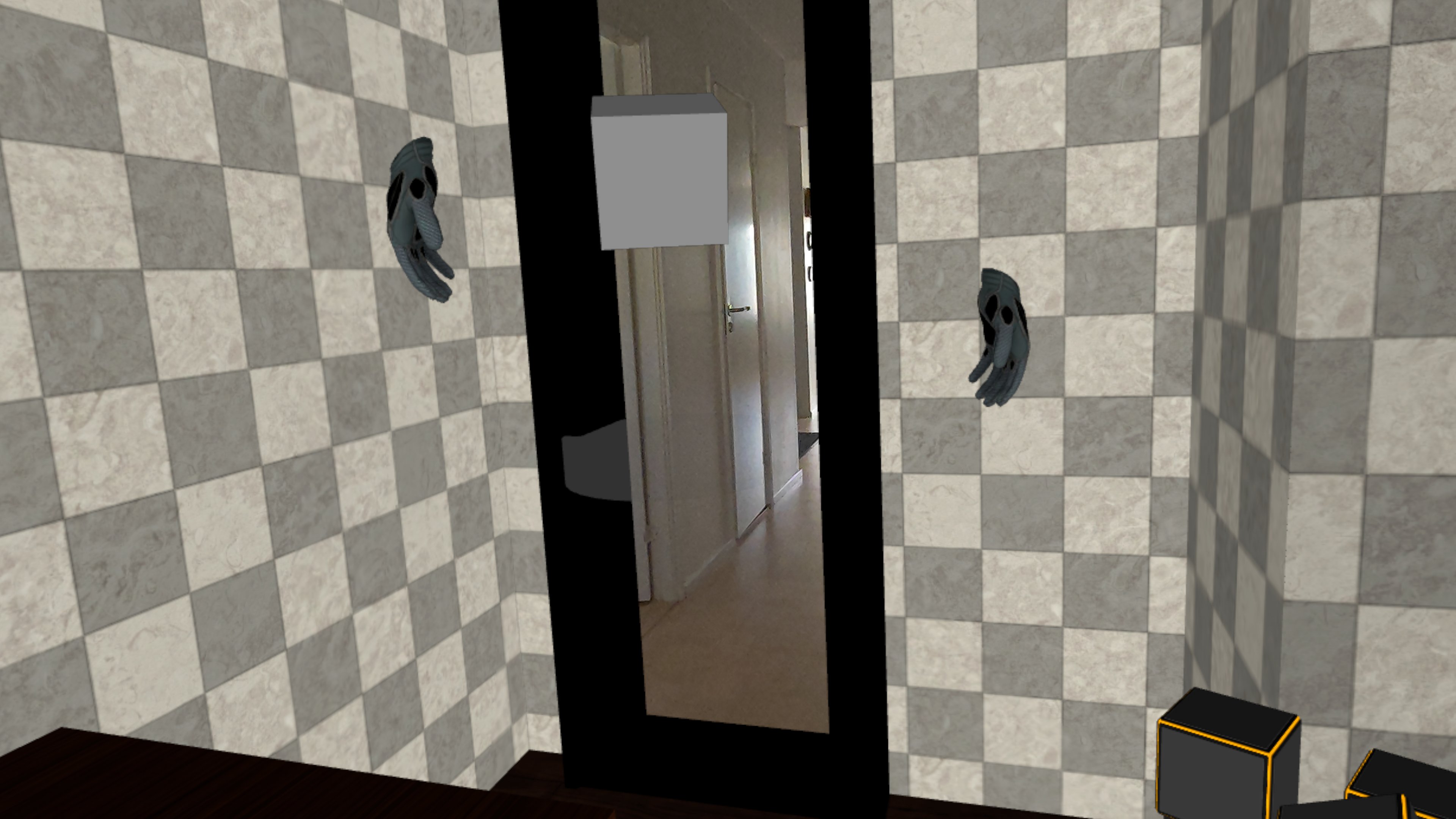
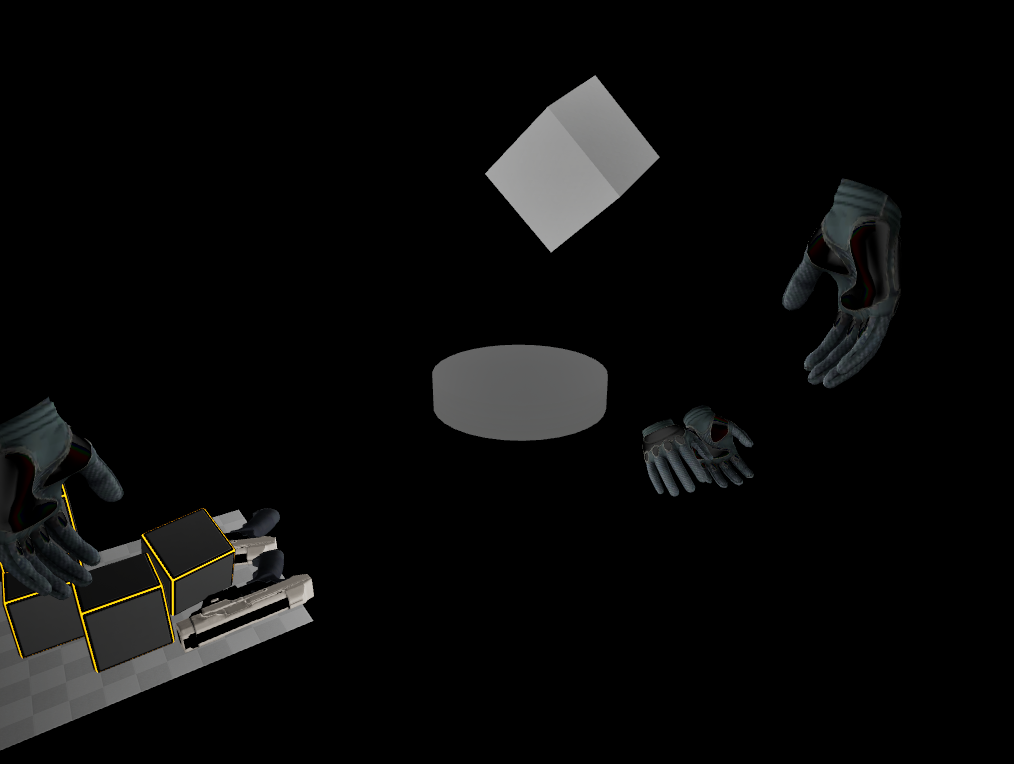
Replicating room elements from a headset client to the server and other clients is still work in progress.
Dedicated server for Linux with MetaXR plugin
By default the MetaXR plugin does not support the Linux platform, instead it only supports Win64 and Android target platforms. When trying to build a dedicated server for Linux for a project containing the MetaXR plugin, this normally results in an error that the platform is not supported.
As a workaround, the OculusXR.uplugin can be adjusted to add Linux in the SupportedTargetPlatforms array:
...
"SupportedTargetPlatforms": [
	"Win64",
	"Android",
	"Linux"
],
...
The build will then succeed, without any noticeable problems so far.
Conclusion
Mixed Reality is an exciting way to create unique experiences that blend the real and virtual world. Such experiences can be enhanced further by allowing multiple users to participate using multiplayer features, so they can cooperate or compete for a given goal.
We at Immerstory are excited to support our customers with their immersive experiences, and look forward to share more exploration progress soon.
What immersive experience would you like to see? Let us know!
Additional Resources
Documentation for the MetaXR plugin, specifically the Mixed Reality Utility Kit which was used for this demo, can be found here